

User Guide Members and billing
Members, roles and permissions
Invite your team, choose what each person can do, and restrict spaces, databases, documents and whiteboards to the right people.
Everyone in your organization has a role. The role decides what they can do everywhere; you can then fine-tune access for one person or one space, database, document or whiteboard.
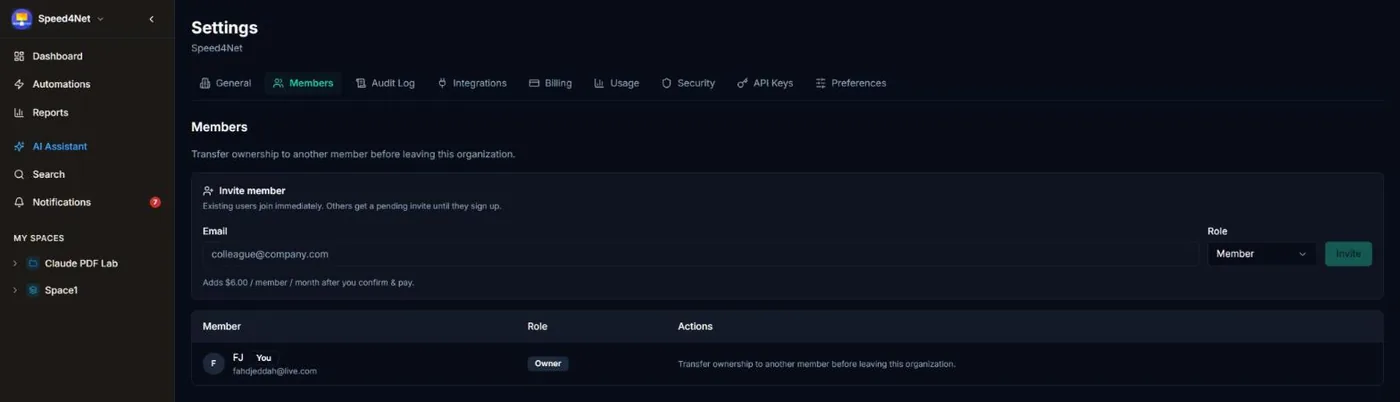
Members are managed in Settings → Members. Only owners and admins can invite, change or remove members.
Roles
| Role | Can do | Paid seat |
|---|---|---|
| Owner | Everything, including organization settings, billing and deleting the organization. There is one owner. | Yes |
| Admin | Everything except organization-level settings reserved for the owner: members, spaces, databases, automations, reports, integrations, audit log. Always has access to every space. | Yes |
| Builder | Create and edit spaces and databases, add fields and views, design PDF templates, and manage automations, reports and dashboards. Can't delete spaces or databases. | Yes |
| Member | View, add and edit records. Can't delete records or change the structure. | Yes |
| Viewer | View records, documents and whiteboards. | Free |
| Guest | Sees only what you share with them — a space, a database, a document or a whiteboard — and can view or edit it, as you choose. For clients, partners and freelancers. | Free |
Tip
Viewers and guests are free and unlimited on paid plans. Give the viewer role to colleagues who only need to read, and the guest role to people outside your company.
Invite people
- Go to Settings → Members.
- Under Invite member, enter an Email and choose a Role.
- Choose Invite.
People who already have a CovaNode account are added straight away. Others receive an email and appear under Pending invitations until they sign up. An invitation is valid for 7 days; use Resend to send the email again or Revoke to cancel it.
On paid plans: confirm and pay
Adding a paid seat is never charged by surprise; viewers and guests never need paying for. The invite form shows the price before you send it, for example Adds $6.00 / member / month after you confirm & pay.
- When the invited person accepts, they appear on the Members page with the badge Awaiting payment. Until then they see a page that says their access is waiting for activation.
- An owner or admin chooses Confirm & pay. The dialog shows the prorated amount due today.
- The amount is charged to the organization's card, the member gets access right away, and the invoice is emailed to you.
If nobody confirms, a reminder is sent after 48 hours and the invitation is cancelled after 7 days. If the card is declined, choose Update payment method and then Retry.
The owner can turn on Charge automatically when an invitee accepts in Settings → Billing to skip the confirm step. Viewers and guests never need confirming.
Limits on the Free plan
The Free plan includes up to 10 members (paid roles, owner included), 10 viewers and 10 guests. Pending invitations count toward these limits. See Plans and billing.
Change a role
Pick a new role next to the member in Settings → Members. Changing a viewer or guest to a paid role on a paid plan shows the cost and charges the prorated amount when you confirm. Changing someone to viewer or guest frees their paid seat, and the difference is credited to your next invoice.
Adjust one member's permissions
Choose Permissions next to a member to go beyond their role:
- Grant extra — allow actions their role doesn't include, for example let one member delete records.
- Revoke — remove actions their role normally allows.
If an action is both granted and revoked, the revoke wins. The member list shows how many overrides each person has.
Restrict access to a space, database, document or whiteboard
By default, everyone can open everything their role allows. To limit something to specific people:
| What | Where to restrict it |
|---|---|
| Space | Open the space's Overview → Space access. |
| Database | In the sidebar, open the database's menu → Database access. |
| Document | Open the document → Document access. |
| Whiteboard | Open the whiteboard → Permissions in the toolbar, and choose View, Edit or Delete for each member. |
Choose a member and an access level — Can view or Can edit — then Grant access. As soon as one member is listed, only the listed people can open it — owners and admins always have access. Use Remove to take one person off the list, or Remove all restrictions to open it to everyone again.
An access level never gives more than the person's role: a viewer listed with Can edit can still only view.
Restrictions work from the outside in: a database or document with its own list follows that list; otherwise it follows its space's list; otherwise it follows each person's role.
Important
A restriction applies as soon as you grant access to the first member: everyone else (except owners and admins) loses access at once. Add all the people who need it.
Guests
Invite clients, partners or freelancers as guests. Guests are free (10 on the Free plan, unlimited on paid plans) and see nothing until you share something with them:
- Invite them in Settings → Members with the role Guest.
- Share a space, a database, a document or a whiteboard with them using the access lists above, with Can view or Can edit.
A guest's home page lists only what has been shared with them. Sharing a space shares everything in it. Guests can view, add and edit records where they have Can edit, but can never delete records, change fields or views, or see automations, reports, search, the AI assistant, other members or the trash.
Remove members, transfer ownership, leave
- Remove a member: choose Remove next to them. On a paid plan their seat is freed and the difference is credited to your next invoice. What they created stays in the workspace.
- Transfer ownership: the owner chooses Transfer ownership next to another member. That person becomes the owner and you become an admin.
- Leave the organization: choose Leave organization. The owner must transfer ownership first.
Last updated: