

User Guide Automate and report
PDF templates
Print any record as a PDF, design your own quotes and invoices with the Page Designer, and create PDFs from buttons, automations and selections.
Every record can be downloaded as a PDF. On paid plans you can also design your own documents — quotes, invoices, work orders, contracts — with the Page Designer, and create them automatically.
Download a record as a PDF
- Open a record.
- Choose PDF.
- Pick the Template, Paper size (A4 or Letter) and Text direction (same as the app language, right to left, or left to right).
- Choose Download PDF.
Without a template, CovaNode uses the Basic layout (built-in): your organization's logo and name, the record title, a table of the record's fields in the order you see them, and tables of linked records. Fields you have hidden in the record panel are left out. Linked records from databases you can't open show only a count.
The basic layout is available on every plan. On the Free plan it carries a small Made with CovaNode line in the footer.
Design your own template
The Page Designer is available on Starter (3 templates per database) and Pro (unlimited). Owners, admins and builders — anyone who can edit the database — can create and change templates. Everyone who can view a record can print it with them.
- Open the database and choose PDF templates in the toolbar.
- Enter a Template name, for example Quotation, and choose New template.
- Choose Open designer.
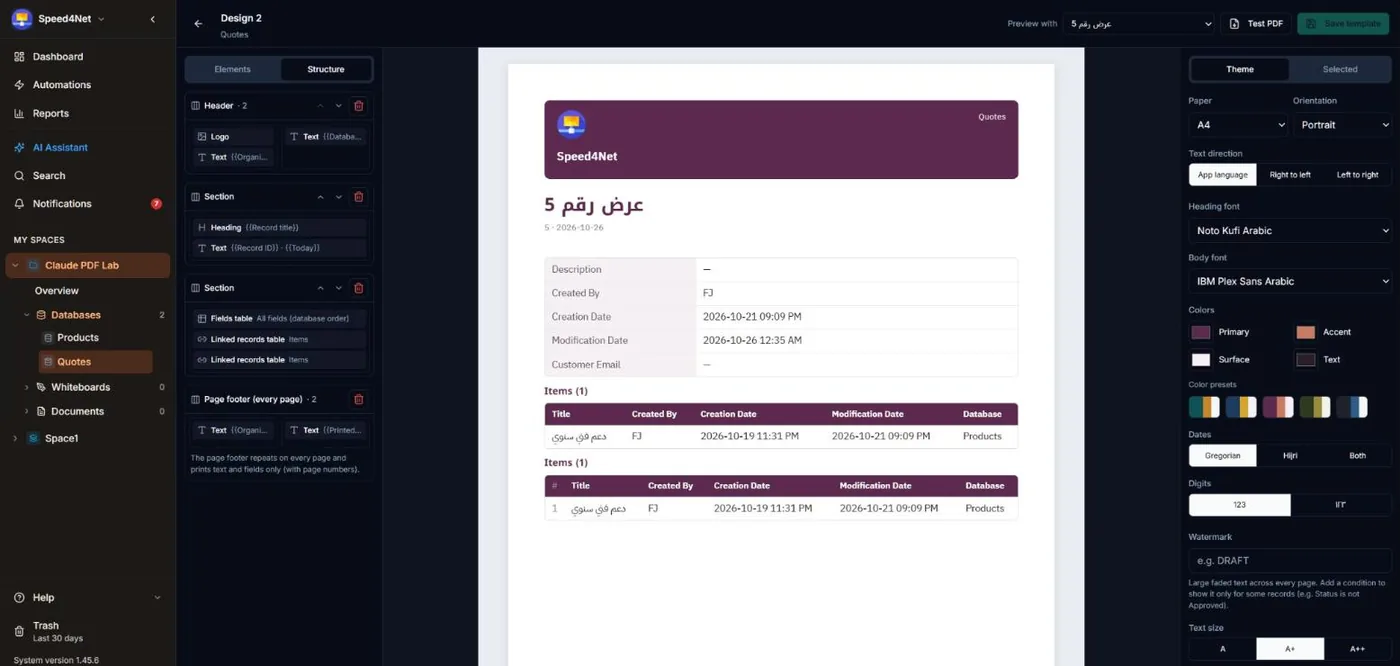
The designer has three parts:
- Elements and Structure on one side: add elements and arrange the bands of the page.
- Live preview in the middle: a real render of the PDF. Use Preview with at the top to pick a record.
- Theme and Selected on the other side: the look of the whole page, and the settings of the element you selected.
Choose Save template when you are done, or Test PDF to download a sample.
Bands
A page is built from bands, top to bottom. Add them with Add band:
| Band | What it is for |
|---|---|
| Header | The top of the first page: logo, company name, document title. |
| Section | The body of the document. Add as many as you need; each can have 1 to 3 Columns, a Background and Padding. |
| Page footer | Repeats on every page with page numbers. It prints text and fields only — no images. |
Move bands with the arrows, and select a column in Structure before adding an element so it lands in the right place.
Elements
| Element | What it prints |
|---|---|
| Heading and Text | Your own text. Choose Insert field… to add values from the record, for example Quote for {{Customer}}. |
| Field | One field with or without its name. |
| Fields table | Several fields as a two-column table, in database order or the order you choose. |
| Linked records table | The records linked through a relation field, for example the items of a quote. Choose up to 8 columns, a Totals row (sum, average, min, max, count), Row numbers and Alternate row shading. |
| Logo | Your organization's logo. |
| QR code | A link to the record (opens it in CovaNode after sign-in) or your own text. |
| Signature | An uploaded signature image (PNG, JPEG or WebP, up to 1 MB), a signing line and a caption. Leave the image empty for a blank line to sign by hand. |
| Divider and Spacer | A line or empty space between elements. |
Any element can be shown only for some records with Show only when…, for example only when Status equals Approved.
Theme
In Theme you set the look of the whole document:
- Paper, Orientation (portrait or landscape) and Text direction.
- Heading font and Body font, including Arabic fonts.
- Colors — primary, accent, surface and text — or one of the Color presets.
- Dates: Gregorian, Hijri or both.
- Digits: 123 or ١٢٣.
- Watermark: large faded text such as DRAFT on every page. Add a condition to show it only for some records.
Default template
In the templates list, choose Set as default on a template. It is then used whenever a PDF, a button or an automation doesn't name a template. Remove default goes back to the basic layout.
Save PDFs to a record
In the PDF dialog, choose Save to record to keep a copy. Saved copies appear under Saved PDFs on the record, where anyone who can view the record can download them. You can Regenerate with another template or delete a saved PDF. Saved PDFs count toward your storage.
Create PDFs automatically
These actions need a paid plan (Starter or higher):
| Where | What happens |
|---|---|
| Selected records | In a table, select records and choose PDF. Get One PDF with all records or a ZIP of PDFs with one file per record. Up to 25 records at a time. |
| Button field | A Generate PDF button downloads the record's PDF with the template you pick, and can also save a copy to the record. See Fields. |
| Automation | The Generate document action saves the PDF to the record and/or emails it — to an address in a field and up to 5 fixed addresses. See Automations. |
| Print view | Turns the current view into one PDF table with totals per column. See Views. |
Note
Emails with PDFs are limited per day: 50 on Starter and 200 on Pro. To protect the service, PDFs are also limited to a few dozen per person every 10 minutes; if you hit a limit, wait a few minutes and try again.
Last updated: