

User Guide Automate and report
Automations
Let CovaNode do repetitive work for you — when something happens, check a condition, then act.
An automation watches one database and runs an action when something happens there. Every automation has the same three parts: When (trigger), If (optional condition) and Then (action).
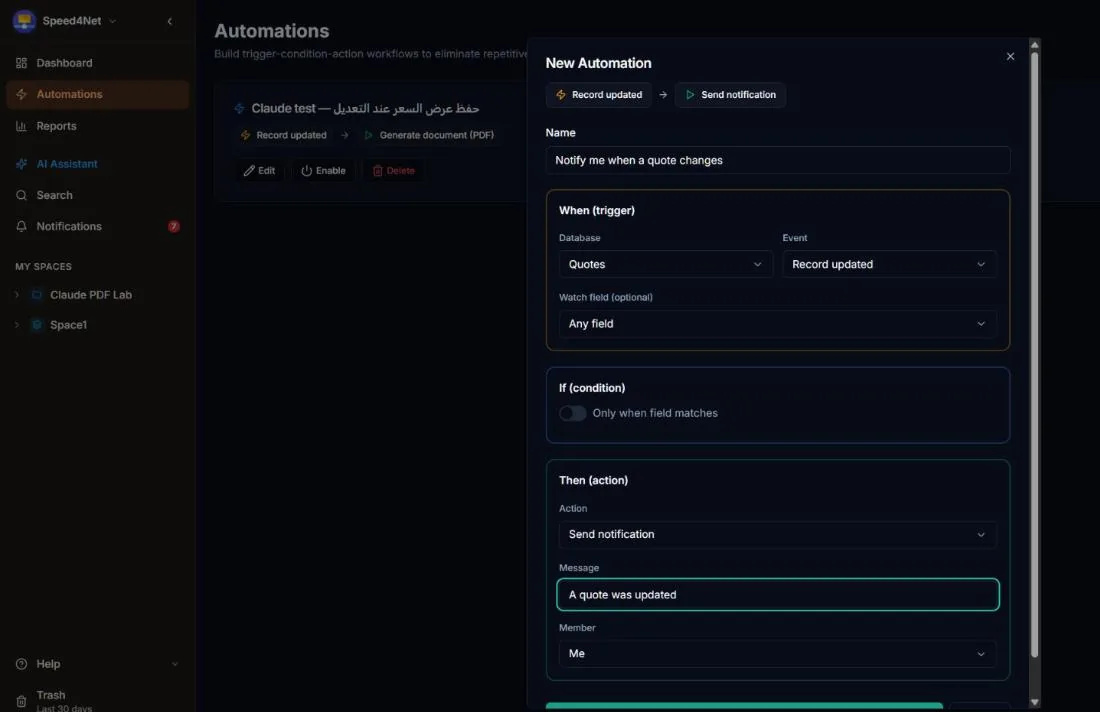
Create an automation
- Open Automations in the sidebar and choose New Automation.
- Give it a name that says what it does, for example Assign on status change.
- Set When, optionally If, and Then as described below.
- Choose Create Automation.
Each automation in the list shows a short summary, for example Record updated · Status → Status equals Done → Send notification. You can enable, disable, edit and delete automations from the list; deleting asks you to click twice. If an automation sends to or assigns a member who has left the workspace, its card shows Member no longer in workspace — edit it and choose another member. Owners, admins and builders can manage automations.
When — triggers
Choose the Database to watch and the Event:
| Event | Runs when |
|---|---|
| Record created | A new record is added. |
| Record updated | A record changes. Use Watch field to run only when a specific field changes. |
| Field changed | A field's value changes. |
| Comment added | Someone comments on a record. |
If — condition (optional)
Turn on Only when field matches to run the action only for some records. Pick a Field, an Operator and a value:
- Equals / Not equals
- Contains
- Is empty
For example: Status equals Done.
Then — actions
| Action | What it does |
|---|---|
| Assign user | Choose the member and the People field to put them in, for example the reviewer. |
| Update field | Sets a field to a new value, for example Priority = High. |
| Send notification | Sends an in-app notification with your message to a member you choose (default: you). |
| Generate document (PDF) | Creates a PDF from one of your templates and saves it to the record and/or emails it — for example to the customer's email field. Paid plans. |
Examples
- When a record is updated, if Status equals Done, then send a notification "Task completed".
- When a record is created in Requests, then assign it to the team lead.
- When Status changes, if Status equals Approved, then generate the quote PDF and email it to the customer.
Limits
Each run counts toward your plan's monthly automation runs: 500 on Free, 5,000 per member on Starter and 10,000 per member on Pro. See Plans and billing.
Last updated: