

User Guide Automate and report
Automations
Let CovaNode do repetitive work for you — when something happens, check a condition, then act.
An automation watches one database and runs an action when something happens there. Every automation has the same three parts: When (trigger), If (optional condition) and Then (action).
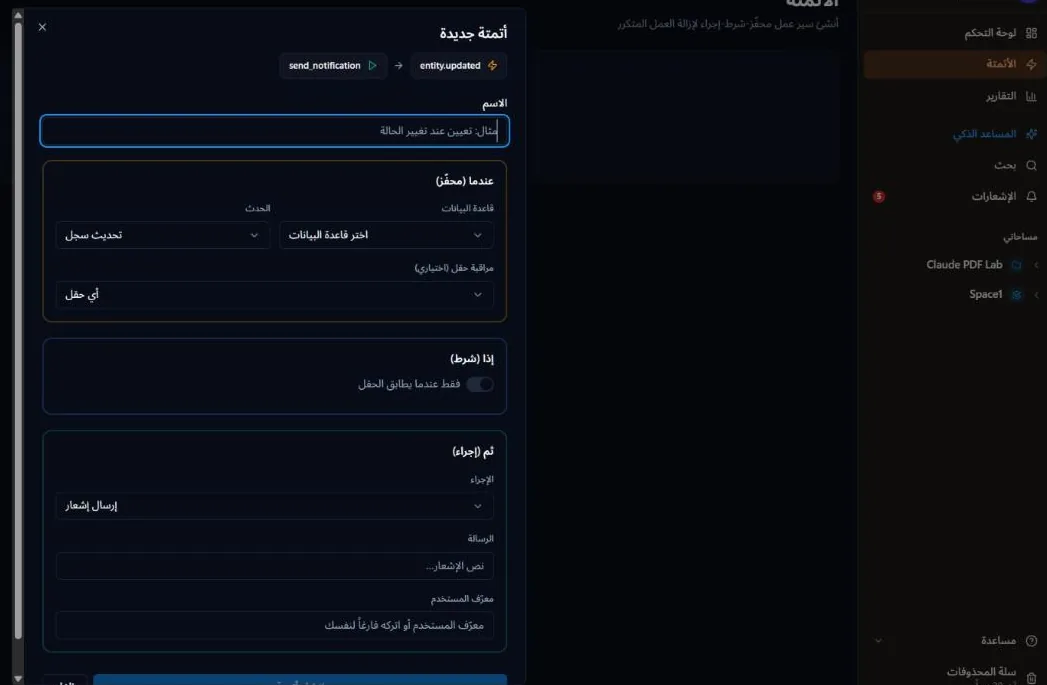
Create an automation
- Open Automations in the sidebar and choose New Automation.
- Give it a name that says what it does, for example Assign on status change.
- Set When, optionally If, and Then as described below.
- Choose Create Automation.
Each automation in the list shows a short summary, for example Record updated · Status → Status equals Done → Send notification. You can enable, disable, edit and delete automations from the list. If an automation sends to or assigns a member who has left the workspace, its card shows Member no longer in workspace — edit it and choose another member. Owners, admins and builders can manage automations.
When — triggers
Choose the Database to watch and the Event:
| Event | Runs when |
|---|---|
| Record created | A new record is added. |
| Record updated | A record changes. Use Watch field to run only when a specific field changes. |
| Field changed | A field's value changes. |
| Comment added | Someone comments on a record. |
If — condition (optional)
Turn on Only when field matches to run the action only for some records. Pick a Field, an Operator and a value:
- Equals / Not equals
- Contains
- Is empty
For example: Status equals Done.
Then — actions
| Action | What it does |
|---|---|
| Assign user | Choose the member and the People field to put them in, for example the reviewer. |
| Update field | Sets a field to a new value, for example Priority = High. |
| Send notification | Sends an in-app notification with your message to a member you choose (default: you). |
| Generate document (PDF) | Creates a PDF from one of your templates and saves it to the record and/or emails it — for example to the customer's email field. Paid plans. |
Examples
- When a record is updated, if Status equals Done, then send a notification "Task completed".
- When a record is created in Requests, then assign it to the team lead.
- When Status changes, if Status equals Approved, then generate the quote PDF and email it to the customer.
Limits
Each run counts toward your plan's monthly automation runs (Free 500, Starter 5,000, Pro 10,000). See Pricing.
Last updated: