

User Guide Docs and whiteboards
Whiteboards
Brainstorm with sticky notes, shapes and text — then turn ideas into tracked tasks.
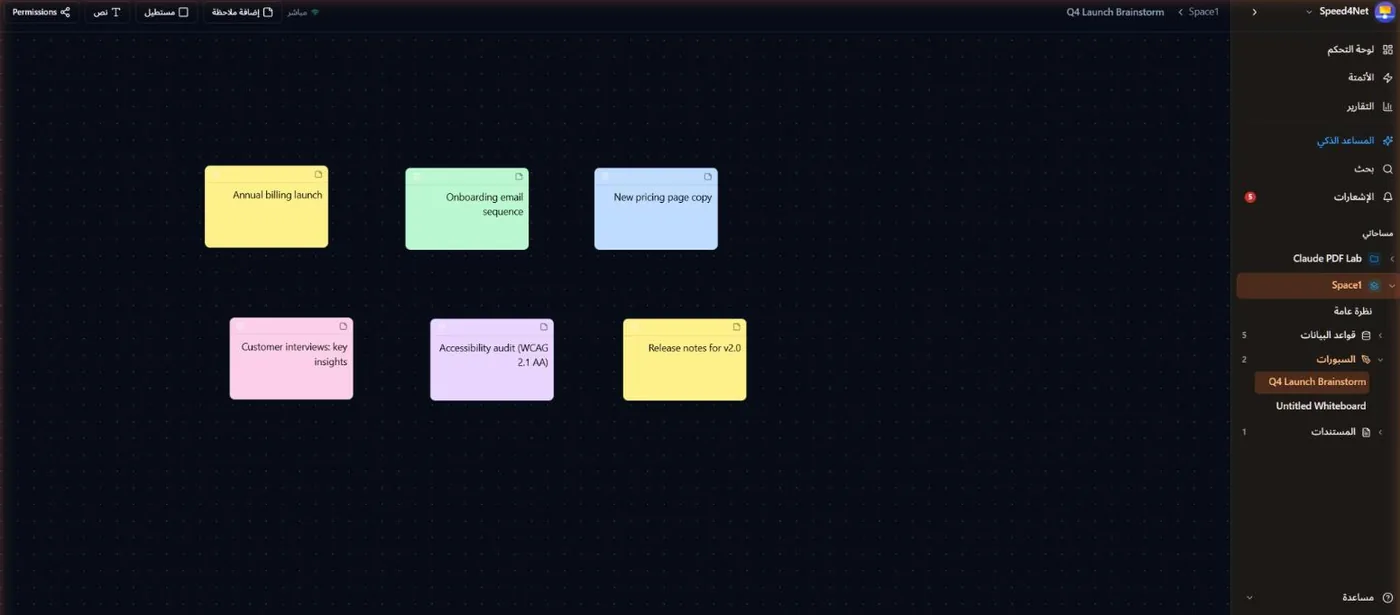
A whiteboard is an open canvas for brainstorming, planning sessions and quick diagrams. Like documents, whiteboards live inside a space.
Create a whiteboard
Open a space and use the Whiteboards section in the sidebar or the space's Overview to create a New Whiteboard, then give it a title.
Add and arrange items
The toolbar at the top adds:
- Add Sticky Note — a colored note for one idea,
- Rectangle — a shape to group or frame items,
- Text — a free text label.
Click an item to select it and type to edit its text. Drag items to move them, and use the delete button on a selected item to remove it. Changes save automatically.
Work together
Everyone with access sees changes live. The indicator in the toolbar shows Live when you're connected.
Turn a sticky note into a task
Good ideas shouldn't stay on the board:
- Select a sticky note.
- Choose Convert to Task.
- Pick the Target Database (for example Tasks) and choose Create Task.
A new record is created in that database with the note's text as its title, ready to be assigned and tracked. A message confirms it; choose Open task in that message to go straight to the new record.
Permissions
Use Permissions in the toolbar to restrict the whiteboard to specific members, the same way as document access.
Last updated: