

User Guide Docs and whiteboards
Documents
Write together in real time, add images, link records and control who can open each document.
Documents are pages your team writes together: plans, meeting notes, procedures, specs. Each document lives in a space and can link to records from your databases.
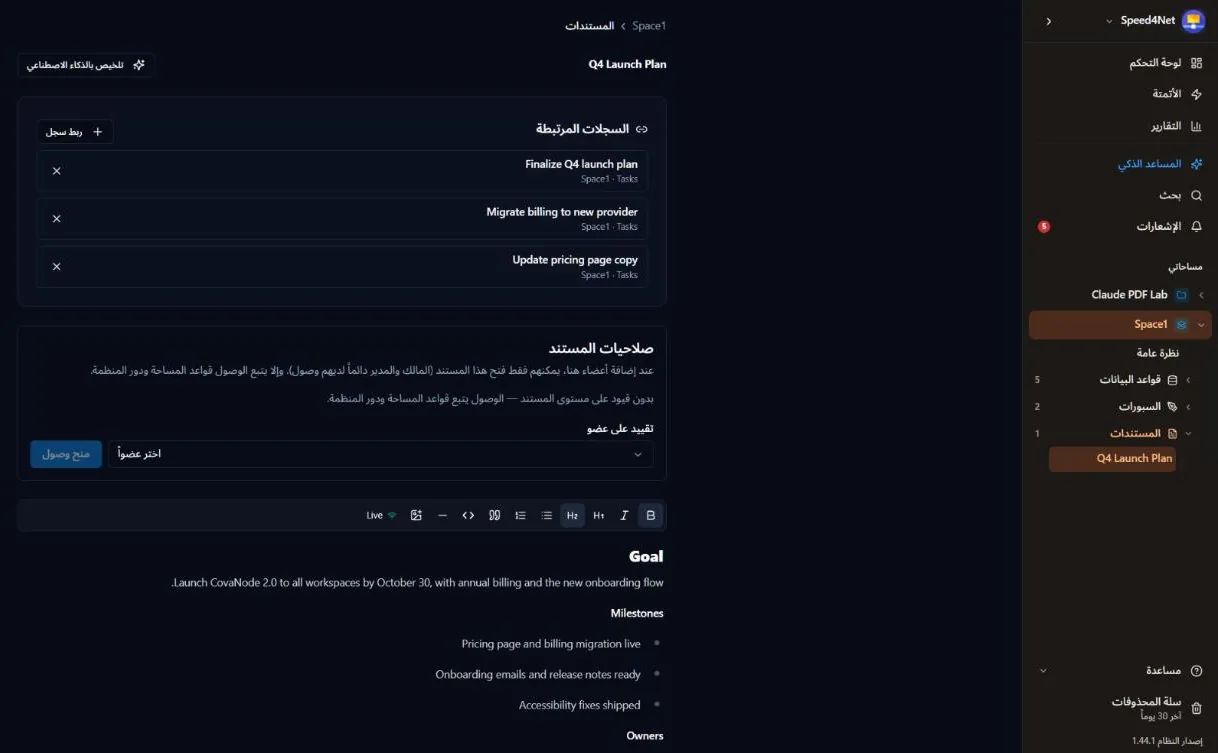
Create a document
- Open a space's Overview and choose New Document under Documents, or
- use the Documents section of the space in the sidebar.
Give the document a title at the top. Everything you write is saved automatically.
Write and format
The toolbar above the text offers:
- Bold and Italic
- Heading 1 and Heading 2
- Bullet list and Numbered list
- Quote and Code block
- Horizontal rule
- Insert image
Write together
Several people can edit the same document at once. You see each other's cursors and changes as they happen. The indicator at the end of the toolbar shows Live when you're connected; if it shows Offline, check your connection before continuing.
Images
Add images in three ways:
- Paste a screenshot or a copied image,
- drag and drop image files into the document, or
- choose Insert image in the toolbar (you can pick several files).
Supported formats are PNG, JPG, WebP and GIF, up to 20 MB per image (or your plan's file size limit, if lower). Images count toward your workspace storage. When you paste from Word, Excel or Outlook, the text is kept and the images are uploaded after it.
Note
Images are private: only people who can open the document can see them.
Link records
The Linked records panel connects a document to records in your databases — for example a launch plan linked to its tasks. Choose Link record, search for the record and pick it. Linked records show with their space and database; remove a link with ×.
AI summary
AI Summarize at the top of the document writes a short summary of its text. It uses the AI credits included in your plan.
Who can open a document
By default a document follows its space's access rules and each member's role. In Document access you can restrict it to specific members:
- Choose a member under Restrict to member.
- Choose Grant access.
Once a document has restrictions, only the members you added can open it. Owners and admins always have access. Remove all restrictions returns it to the space's rules.
Duplicate, move and delete
Open the document's menu in the sidebar to Rename, Duplicate, Move to Space or delete it. Duplicating copies the document's images too. Deleted documents go to the Trash.
Last updated: