

User Guide Automate and report
Reports and dashboards
Turn your records into charts and build a home page with the information each person needs.
Reports chart your data across one or more databases. Dashboards are the home page of your workspace: a set of cards with reports, views, documents and your own work.
Reports
Create a report
- Open Reports in the sidebar and choose New report.
- Enter a Report name.
- Pick one or more Source databases — they can come from different spaces.
- Choose a Chart type: bar, pie, line or area.
- Choose Group by: a field (for example Status) or the database.
- Choose Create report.
Read and explore a report
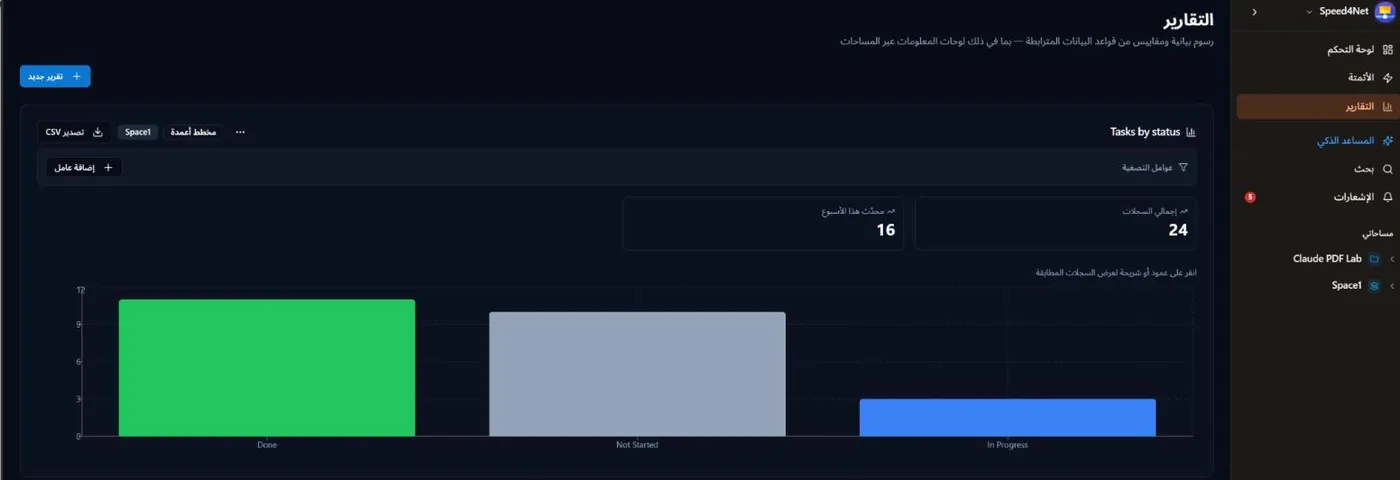
Each report shows:
- Total records and Updated this week at the top,
- the chart. Click a bar or a slice to see the records behind it.
Use Filters → Add filter to narrow the data (equals, contains, is empty), and Export CSV to download the numbers. The ⋯ menu lets you Rename, Edit or delete the report. Owners, admins and builders can manage reports.
Tip
To print a table of records with totals instead of a chart, use Print view in a database. See Views.
Dashboards
The dashboard opens when you choose Dashboard at the top of the sidebar. You can have several dashboards — create one with New dashboard and rename or delete it from its menu.
Add cards
Choose Add card and pick a card. Cards are grouped by purpose:
| Group | Cards |
|---|---|
| Activity and favorites | Recent activity, Favorites |
| Docs and databases | Recent documents, Recent databases, an existing View, Document or Whiteboard embedded on the dashboard |
| Reports and charts | Report — a chart from one of your saved reports |
| Notifications and assigned to you | Notifications, Assigned to me |
When you add a view, document or whiteboard card, you can pick an existing one or create a new one directly from the card.
Arrange cards
Drag cards to move them and resize them to fit. Remove a card with Remove card — this only removes it from the dashboard, not the data behind it.
Last updated: