

User Guide Members and billing
Plans, billing and storage
What each plan includes, how per-member billing works, how to upgrade, switch or cancel, and how file storage is counted.
CovaNode has three plans: Free, Starter and Pro. Paid plans are billed per member (seat) in US dollars, monthly or annually. Settings → Billing and Settings → Usage are available to the organization owner, who manages the plan and payment.
Compare plans
| Free | Starter | Pro | |
|---|---|---|---|
| Price | $0 | $6 per member / month, or $60 per member / year | $10 per member / month, or $96 per member / year |
| Members | Up to 10 members + 10 viewers + 10 guests | Unlimited · viewers and guests free | Unlimited · viewers and guests free |
| Spaces | 1 | Unlimited | Unlimited |
| Databases | 15 | Unlimited | Unlimited |
| Records per database | 3,000 | 10,000 | Unlimited (fair use) |
| Automation runs per month | 500 | 5,000 per member | 10,000 per member |
| AI credits per month | 250 | 500 per member | 1,000 per member |
| File storage | 1 GB per workspace | 5 GB per member | 20 GB per member |
| Largest file | 10 MB | 100 MB | 250 MB |
| Version history | 30 days | 90 days | Unlimited |
| PDF templates | Basic layout only | 3 per database | Unlimited |
| Bulk PDF, PDF buttons and automations | — | Yes | Yes |
| API keys and integrations | — | Yes | Yes |
| Audit log | — | — | Yes |
Prices exclude taxes; any applicable tax or VAT is added at checkout. The full comparison is on the Pricing page and in Settings → Billing → Compare all features.
Note
On paid plans, monthly allowances and storage grow with your team: a Starter workspace with 4 paid members gets 20,000 automation runs, 2,000 AI credits and 20 GB of storage. Viewers and guests are free and don't add to the allowances.
See your plan and usage
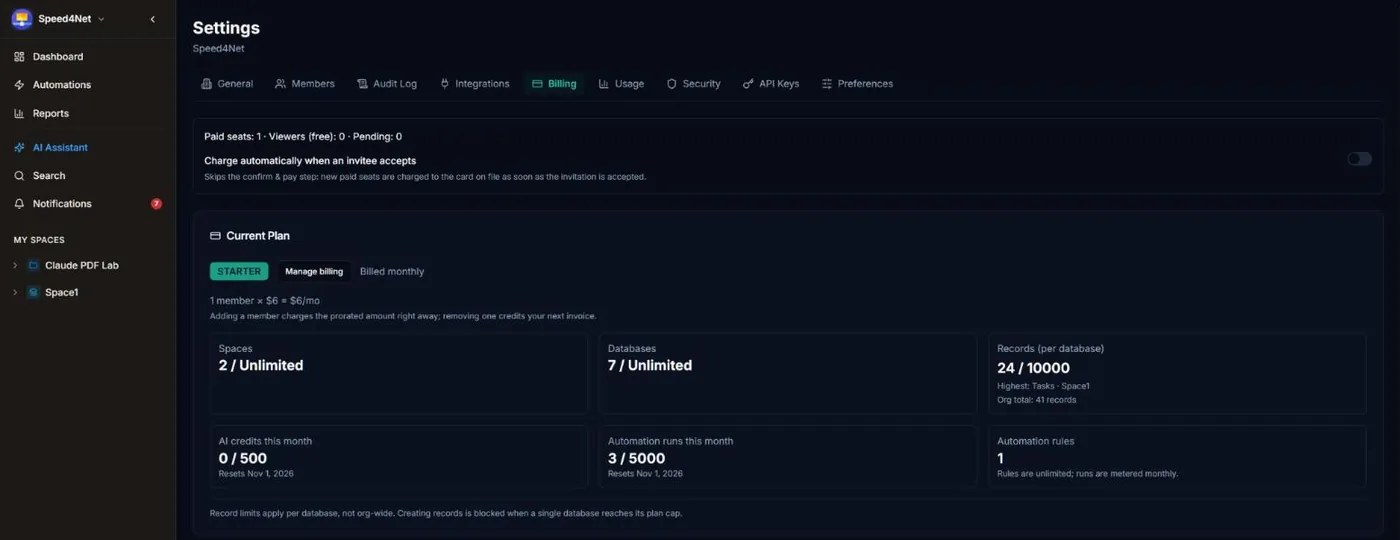
Settings → Billing shows your current plan, the number of paid seats, viewers and pending members, how much you pay, and your usage of spaces, databases, records, AI credits and automation runs. Monthly allowances reset on the 1st of each month.
Settings → Usage shows activity charts and File storage, split into record files, saved PDFs, document images and PDF template images.
Record limits apply to each database separately: when one database reaches its limit, you can't add records to it, but other databases keep working.
Upgrade
- Go to Settings → Billing.
- Under Change plan, choose Monthly or Annually.
- Choose Upgrade on Starter or Pro.
- Complete the payment on the secure checkout page.
Your plan changes as soon as the payment goes through. Payments are processed by Polar, our reseller and Merchant of Record — the charge and invoice come from Polar.
How per-member billing works
- You pay for every member with a paid role: owner, admin, builder and member. Viewers and guests are free.
- Adding a member charges the prorated amount for the rest of the current period, after you confirm and pay.
- Removing a member or changing them to viewer or guest credits the difference to your next invoice.
- Your renewal date doesn't change when members are added or removed.
Manage payment details and invoices
Choose Manage billing in Settings → Billing to open the billing portal, where you can update your card and download invoices.
If a payment fails, a notice appears in Billing. Update your payment method in Manage billing; added members stay pending until their seat is paid.
Switch between monthly and annual
- Monthly to annual: choose Switch to annual at any time. The change is prorated. Annual billing saves up to 20%.
- Annual to monthly: available at your renewal date (Monthly at renewal).
Downgrade or cancel
To cancel a paid plan, switch to Free with Downgrade:
- You keep your paid features until the end of the period you paid for, then the organization moves to Free. Until then, Keep my plan undoes the change.
- Before you confirm, CovaNode lists anything that exceeds the Free plan, such as spaces, databases or records over the limit.
- Your data is never deleted. If you are over a limit, you can still open and edit everything, but you can't create new items of that kind until you are back within the limit.
- API keys, integrations and the audit log are turned off on Free.
Not happy? You can ask for a full refund within 30 days of any payment. See the Refund policy.
File storage
Files count toward your storage: files attached to records, images in documents, saved PDFs and signature images in PDF templates.
- Owners and admins see a notice when storage reaches 80% and when it is full.
- When storage is full, new uploads stop. Existing files are never deleted, and everything else keeps working.
- To free space, delete files you no longer need. Files on items in the Trash still count until the trash is emptied or they are deleted permanently after 30 days.
- Or upgrade, or add members on a paid plan — storage grows with each paid seat.
Last updated: